
For more information about the availability of this feature, contact your Account Manager.
Notifications are scheduled messages for your employees such as a reminder to come to the office or that the office will be closed for a holiday. If a notification has not been sent, you have the opportunity to adjust the recipients, schedule, subject, and/or message.
Alerts, and Notifications that are scheduled to be sent immediately, cannot be edited. If you need to make a correction to an alert, you can send a new alert and clarify that the previous alert was incorrect.
Navigating to Alerts and Notifications
Go to Tools and click Alerts and Notifications from the menu bar.
Edit Unsent Notifications
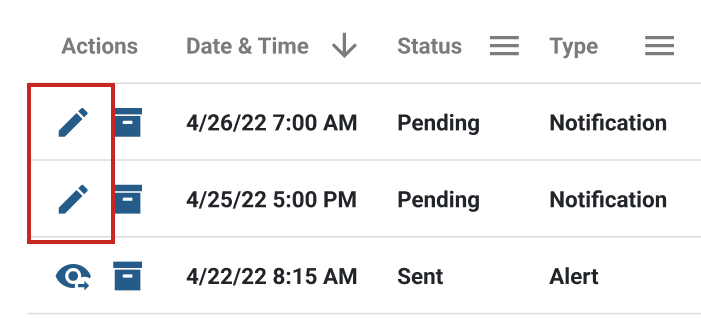
- Click the
 pencil icon towards the left of a pending notification.
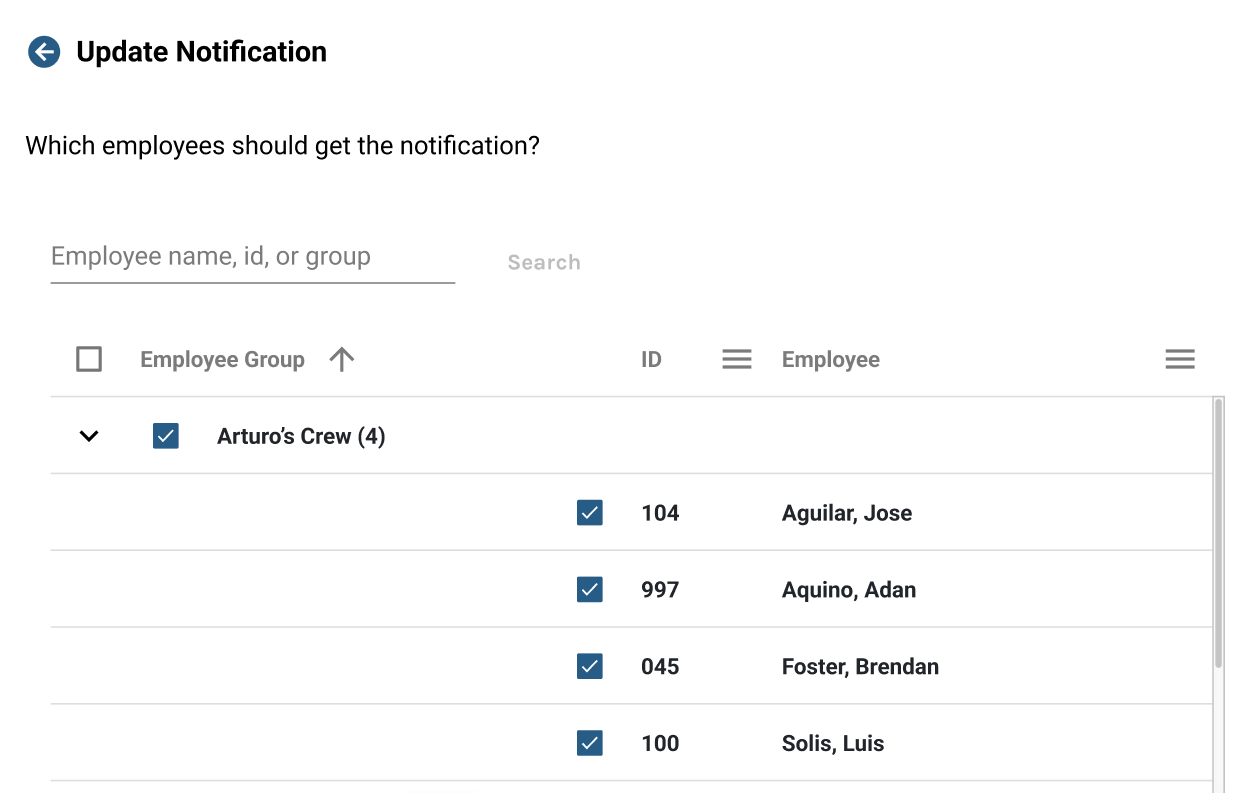
- Adjust the employees that should receive the notifications, when the notification should be sent and/or update the message to be sent.
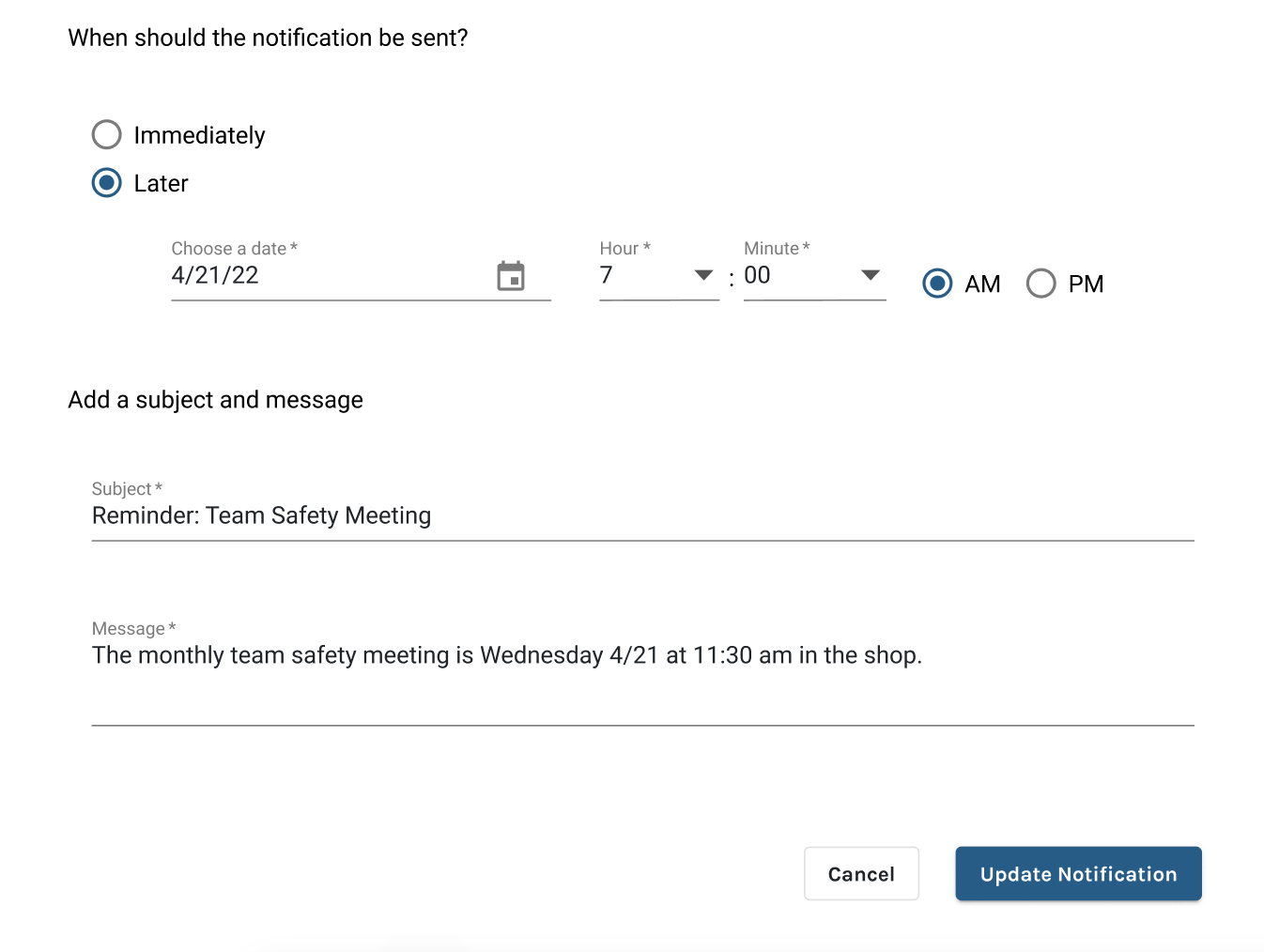
- Save your changes.