
When trying to connect to a QuickBooks company file for the first time or when opening AccountLinx/SyncLinx for QuickBooks, you may receive an error message
QuickBooks Error: This application has not accessed this QuickBooks company data file before. The QuickBooks administrator must grant an application permission to access a QuickBooks company data file for the first time. Please make sure AccountLinx and QuickBooks shortcuts are not set to run in Administrator mode.
What Causes the Error?
This error is generally caused when:
- Trying to connect AccountLinx/SyncLinx to a QuickBooks company file that has not given permission to Accountlinx/SyncLinx.
- Trying to connect AcocuntLinx/SyncLinx to a QuickBooks company file where one of the applications is in "Run as Administrator" mode.
How Can I Fix It?
Granting AccountLinx/SyncLinx Permission to QuickBooks
If this is the first time that you are connecting AccountLinx/SyncLinx to the QuickBooks company file:
- Open your QuickBooks company file and set QuickBooks to Single-user mode by going to Files and clicking .
- Log in to the QuickBooks company file as an Administrator.
- Try to connect the applications again and see if you receive the following prompt in QuickBooks:
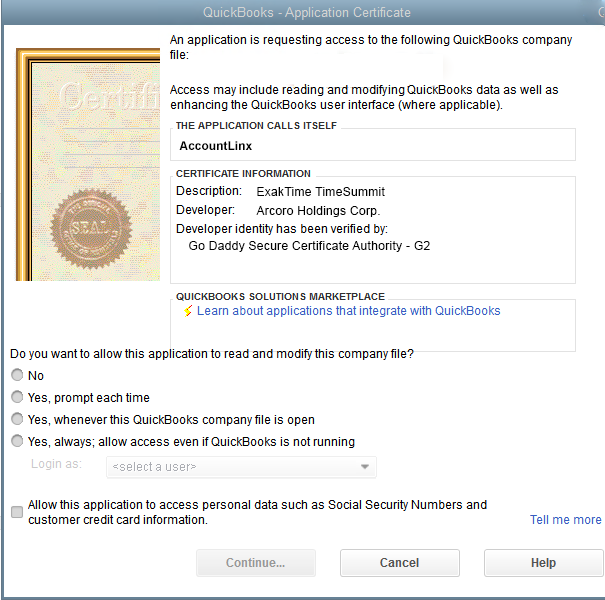
- If you see the above prompt in QuickBooks:
- Select the third option: "Yes, whenever this QuickBooks company file is open."
- Check the box for "Allow this application to access personal data such as Social Security Numbers and customer credit card information."
- Click Continue....
- After closing SyncLinx/AccountLinx, you can set your QuickBooks company file to multi-user mode by going to go to File and clicking Switch to Multi User Mode. You should not need to switch back to single-user mode unless if you need to reconnect SyncLinx/AccountLinx to QuickBooks.
Disabling "Run as Administrator"
"Run as Administrator" is an option in Windows so applications run with elevated permissions. If either AccountLinx/SyncLinx or QuickBooks are set to "run as administrator", then the other application will be unable to connect. An application set to "run as administrator" will generally have a shield icon like in the example below:
To disable "Run as Administrator" or check if the option is enabled:
- Right-click the Application icon.
- Go to Properties.
- Click the Compatibility tab.
- Uncheck "Run this program as an administrator".
- Click OK.
- Try to run QuickBooks and AccountLinx/SyncLinx again.