Excerpt From An Article
This article is an excerpt from another article: Complete Guide to Hiring Templates
Navigating to Hiring Templates for Onboarding
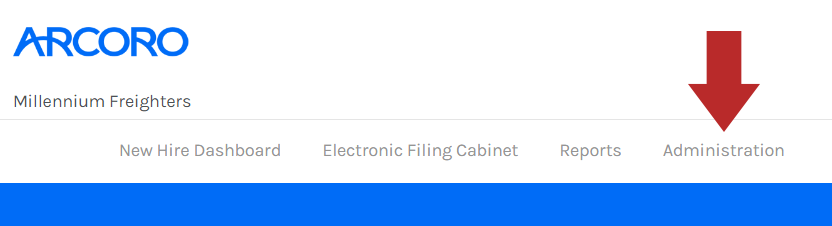
- Click Administration from the top menu bar of Onboarding.
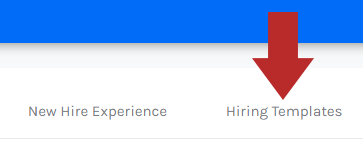
- In the Administration menu, click the Hiring Templates tab.
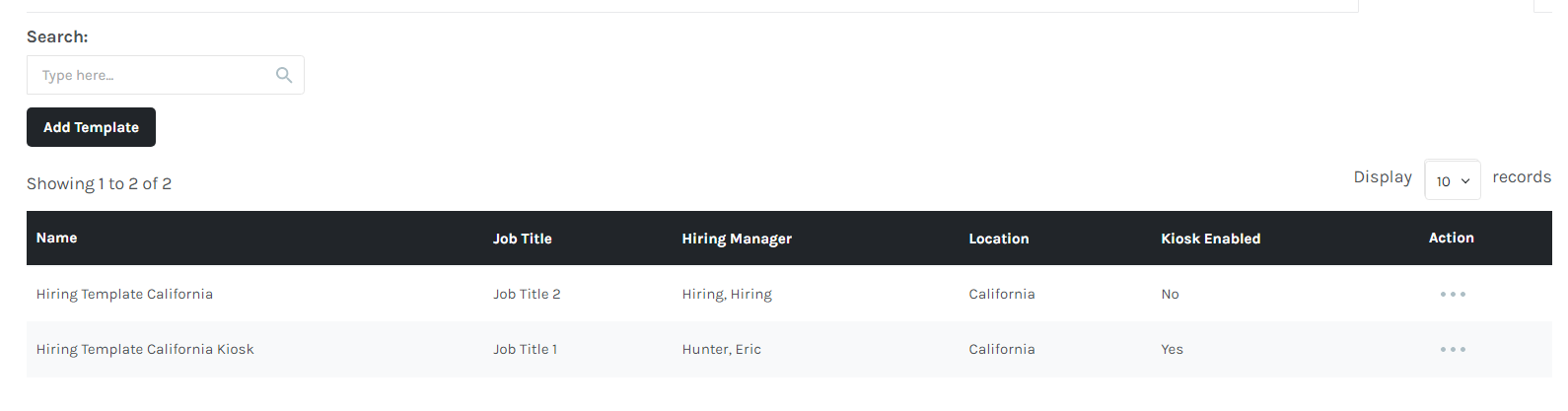
- The Hiring Templates page will present any previously made hiring templates.
Activating Hiring Templates
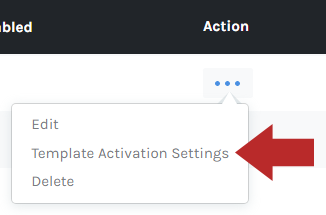
- Click the ... button under the Action column.

- Click Template Activation Settings.
- Select the Company/Locations that the hiring template will be available for.
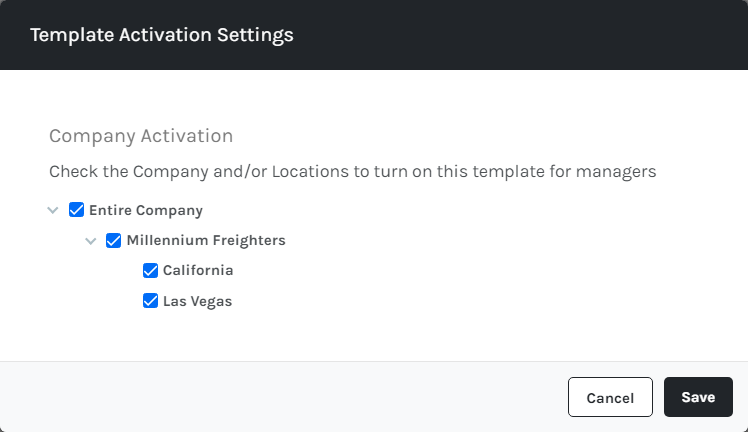
- Click Save.
- Once activated, managers will be able to select the template from a new Hiring Template dropdown on the Add New Hire page.
Using Hiring Templates
Using a Hiring Template in Non-Kiosk Mode
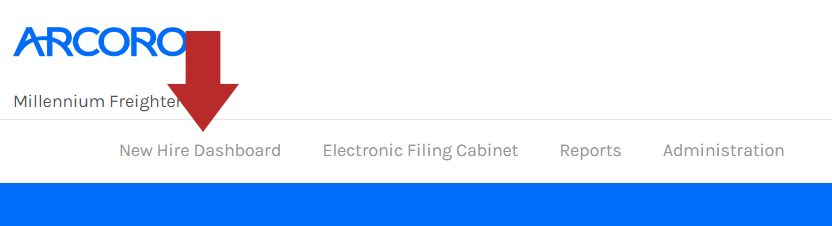
- If not already there, go to the New Hire Dashboard in Onboarding.
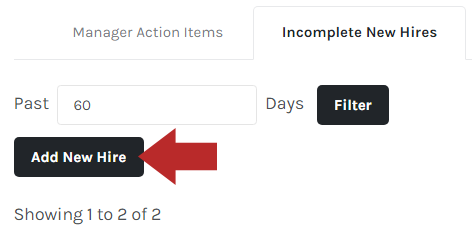
- Click the Incomplete New Hires tab.
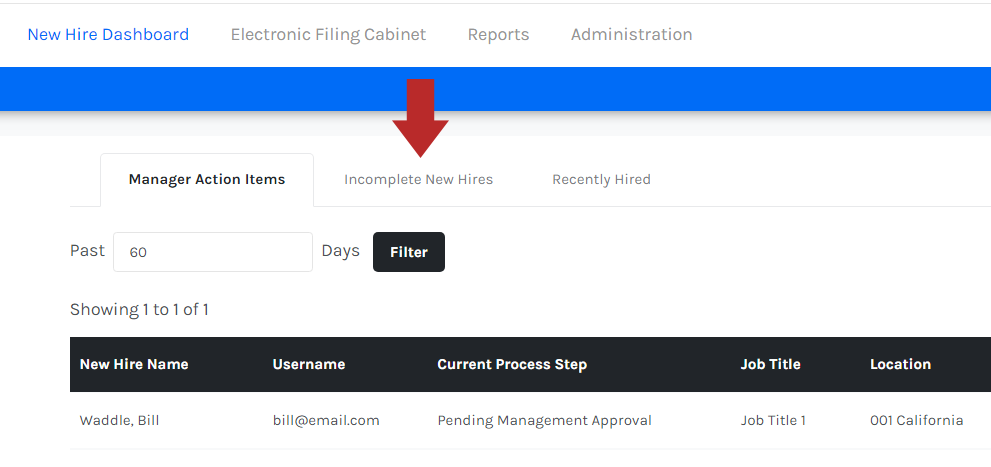
- Click Add New Hire.
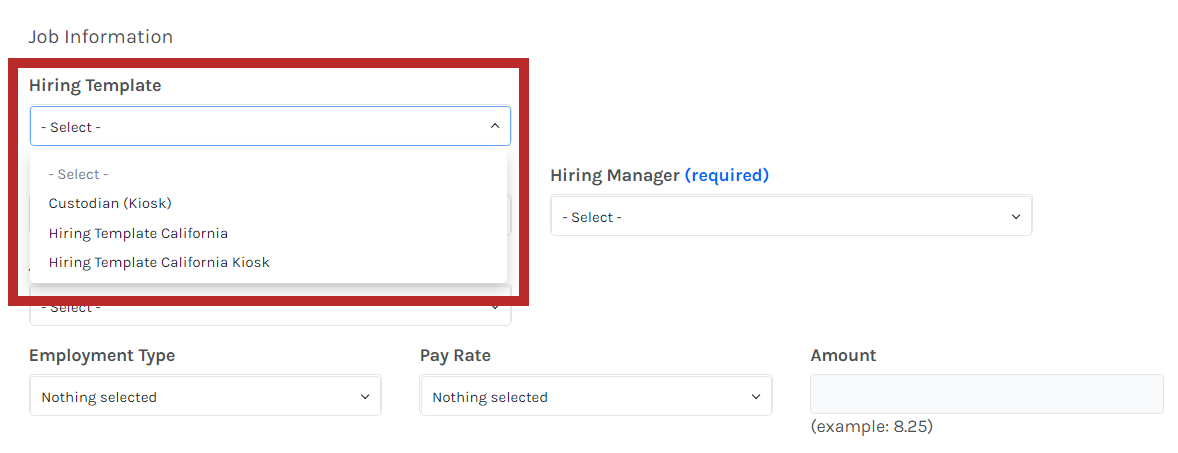
- Select an available Hiring Template from the drop-down menu.
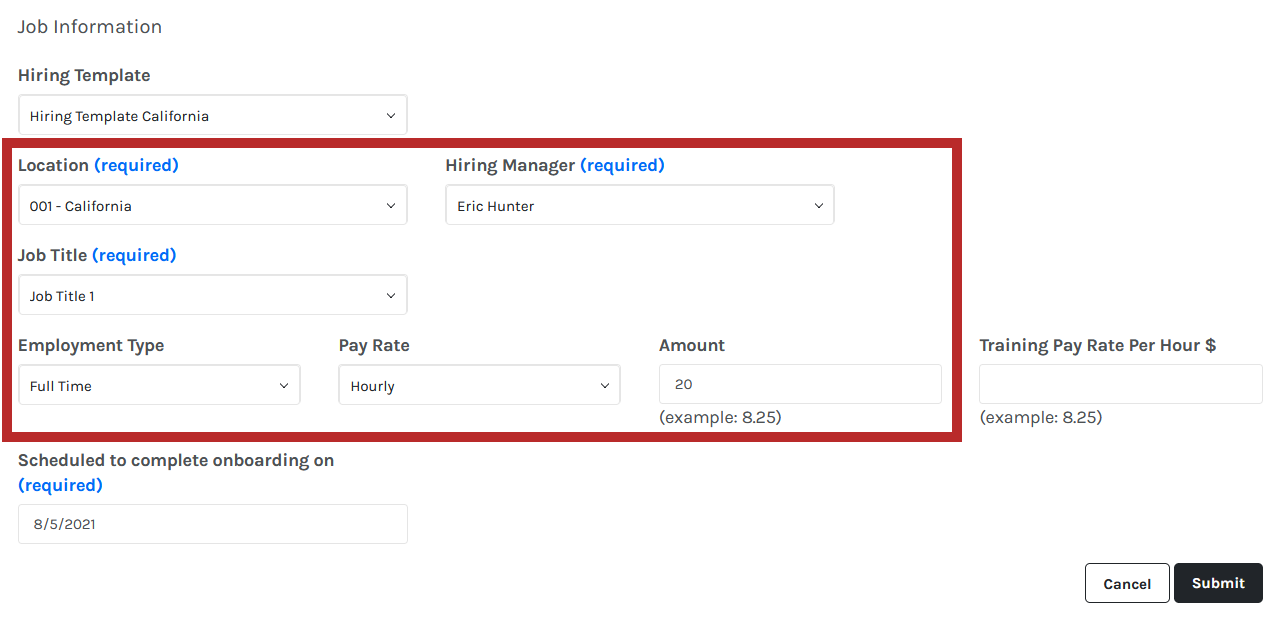
- Once a Hiring Template has been selected, the corresponding fields will be auto-populated based on the information from the setup of the Hiring Template.
Using a Hiring Template in Kiosk Mode
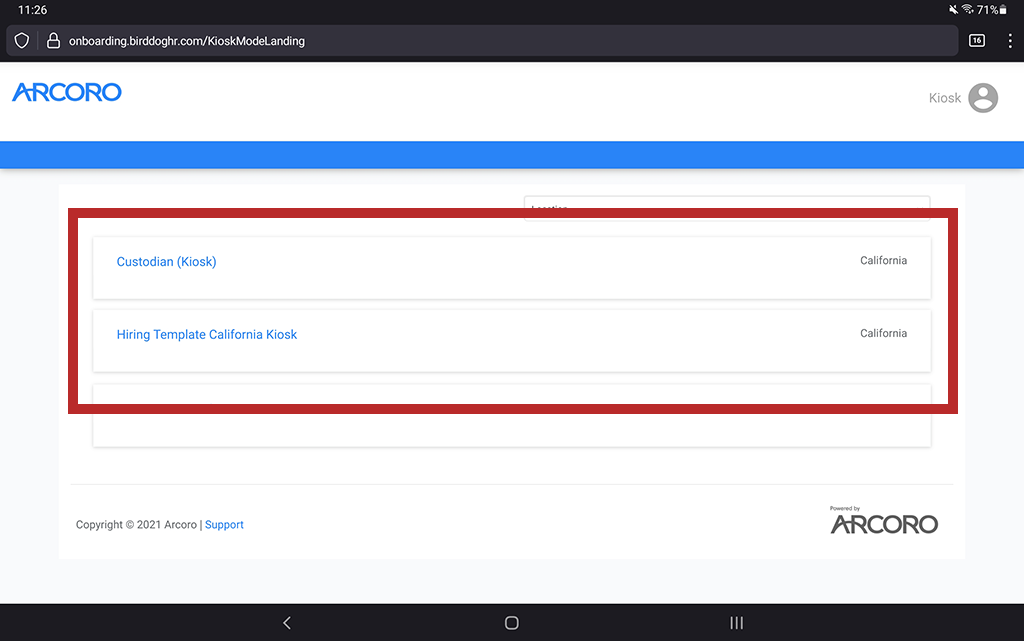
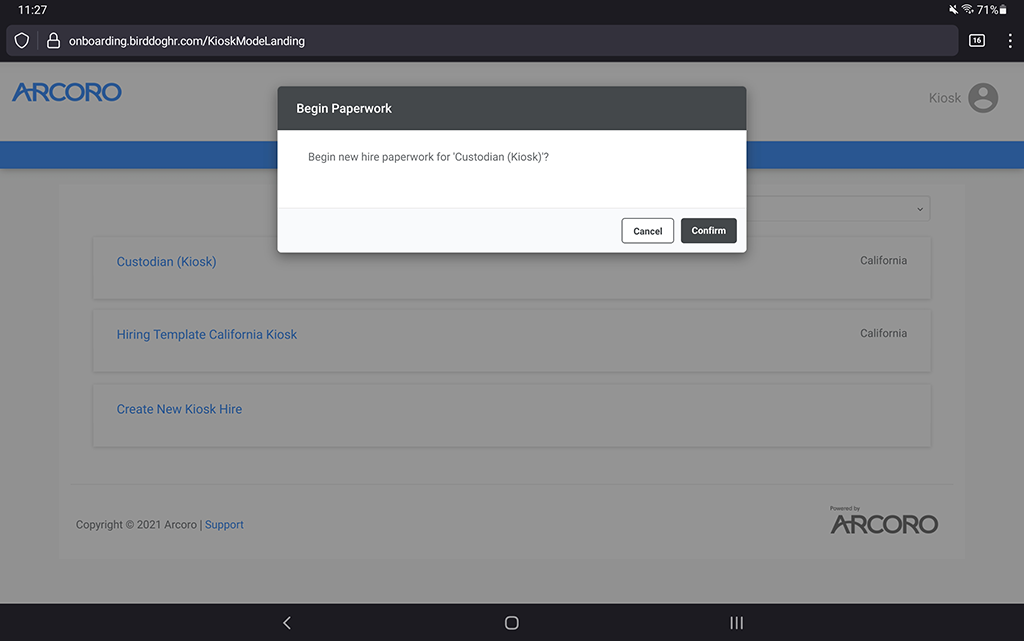
When the Kiosk user signs in, they will be presented with the available Hiring Templates.
- Click/press any of the available Hiring Templates.
- Confirm the use of the Hiring Template by clicking Confirm.
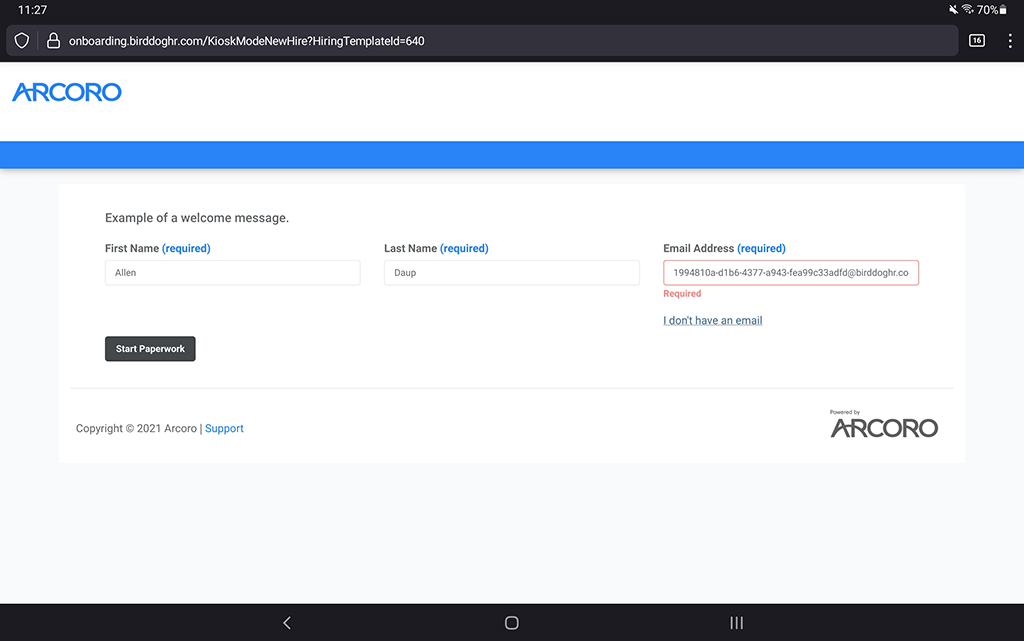
- The new hire should fill in their name and their email. If the new hire does not have an email, they can click/press "I don't have an email."