
When mapping your entities in AccountLinx, any of the mappings that have been saved should stay saved for any future exports. In the event that any of your mappings are not being saved as expected or removed at certain points, you should troubleshoot the cause.
The most common causes have been detailed below:
Integration Enabled with No IDs in ExakTime Connect
Integration is an option for AccountLinx to automatically copy the entity IDs from ExakTime Connect for use in the mapping in AccountLinx. In the event that you do not have any entity IDs in ExakTime Connect, the equivalent mapping fields will be made to match and also be made blank.
Where this can cause the most trouble is if one copy of AccountLinx has integration enabled, but another copy does not. This can result in one person unknowingly deleting all mappings, while another tries to redo the mappings.
This can be resolved with any of the following:
The integration option for AccountLinx must be turned off/on for all copies of AccountLinx in use in the office to ensure consistency. If you are unsure on what is the best option for your company, feel free to contact us with the "Request Support" link at the top of the page to discuss your situation and how best to move forward.
- Go to and click .
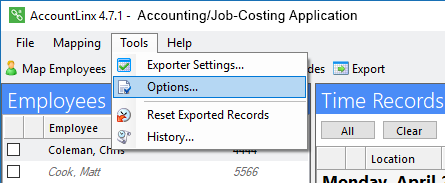
- Click the tab.
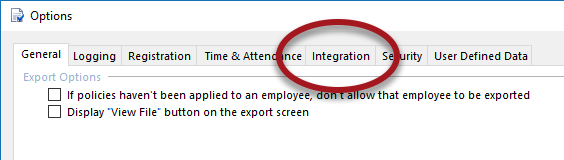
- Disabled the integration(s) as needed.
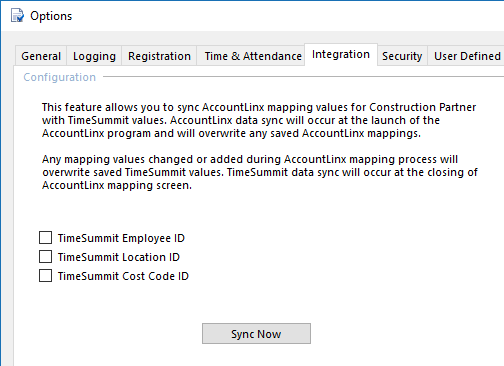
- Save your changes.
Navigate to the entities in ExakTime Connect and enter the IDs as needed. If you are unfamiliar with how to do this, you can refer to any of the articles below on the entity details on ExakTime Connect.
As integration in AccountLinx is designed to keep the data consistent between AccountLinx and ExakTime Connect, any mappings performed in AccountLinx should update the equivalent entity IDs in ExakTime Connect as well. If you were to enter the mappings for a majority of the AccountLinx exporters, it should also update the entity IDs in ExakTime Connect as well as the integration option will try to keep the data updated in ExakTime Connect as it would be treated as the source of truth.
If you are not familiar with mapping, you can refer to the following article.
User for Direct Connections Has No permission
For certain accounting/payroll applications that we can connect directly to, we are using the credentials of a user of the accounting/payroll application to gain access. In the event that an existing user has their permissions adjusted, it can result in AccountLinx also not having permission to view entities such as employees, locations, cost codes (activities), etc. of your accounting/payroll application.
For example, if a user for your QuickBooks company file goes from an Administrator to a limited user, then AccountLinx will only be able to access the information that the QuickBooks user has access to. This can result in but is not limited to, existing mappings being removed and/or not being to perform any future mappings.
In the event that your mappings are suddenly disappearing in AccountLinx, double-check if any user permissions have been recently updated in your accounting/payroll application. You will need to either restore their permissions or update the credentials being used by AccountLinx for the direct connection to a user with the necessary permission.
The credentials being used by AccountLinx are generally found by:
- Go to Tools and click Exporter Settings.
- Click Configuration... on the Exporter Settings window.
- There is generally a "Connection" button that you can use to double-check the credentials that AccountLinx is using.