
Certifications can be assigned to employees who you know have been certified, and they should be associated with their profiles. The page will also list employees with expired certifications so you can address them as needed.
Navigating to Assign Certification
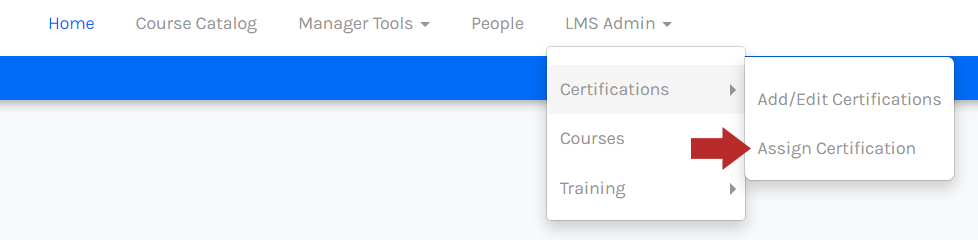
From Learning Management, click LMS Admin, click Certifications, then click Assign Certification.
From the Assign Certification page, you can use the drop-down menu in the top-left to select students and view/add certifications below.
After selecting a student, previously assigned certificates will be listed.
From the certification list, any current certifications will be highlighted in green while any expired certifications will be highlighted in red.
You will see columns for:
- Certification Name
- Certification Start Date/End Date
- Student Name
- Status
Next to each certification will be links to:
- Edit - To edit current certification assignments.
- Delete - Delete the Certification as it is no longer needed or the wrong certification was assigned.
- View - View the actual certificate.
Assign a Certification
- Select employee(s) in the top left under "Select Student." This is typically done individually if each person has their own expiration date. Selecting multiple people can be helpful in situations where they all received their certification simultaneously, such as from an on-site training.
- The certifications assigned to the employee(s) will be listed.
- To assign a certification, click New Item.
- Enter the necessary information for the certification assignment.
- Use the drop-down menu to select an existing certification or add a new certification (Required).
- Enter the start and end date for the certification (when the certification was received and when it will expire). When an Admin sets up the certification, they determine the sequence of the email reminders based on the end date and who they should go to. The notifications will allow the employee to take action on renewing their certification/license.
- Add a title for the certification. Could be the same as certification name (optional)
- Upload a document for the certification. This can be done by using a camera on a mobile device to select and upload (optional). This will be attached to the certification for employees, managers, and Admins to view and print, if necessary.
- When finished, click Save.
Edit an Assigned Certification
- Select employee(s) in the top left under Select Student.
- The certifications assigned to the employee(s) will be listed.
- Click Edit towards the left of the certification.
- Edit the information for the certification assignment.
- Edit the start and end date for the certification (Required). When an Admin sets up the certification, they determine the sequence of the email reminders based on the end date and who they should go to. The notifications will allow the employee to take action on renewing their certification/license.
- Upload a document for the certification. This can be done by using a camera on a mobile device to select and upload (optional). This will be attached to the certification for employees, managers, and Admins to view and print, if necessary.
- When finished, click Save.
Delete an Assigned Certification
- Select employee(s) in the top left under Select Student.
- The certifications assigned to the employee(s) will be listed.
- Click Delete to the left of the certification.
- A confirmation modal will appear to confirm the deletion. Click OK to confirm.