
Certifications in the LMS allow you to track the expiration dates of an employee's certification and send an email certification when the expiration nears, so it can be renewed.
Navigating to Certifications
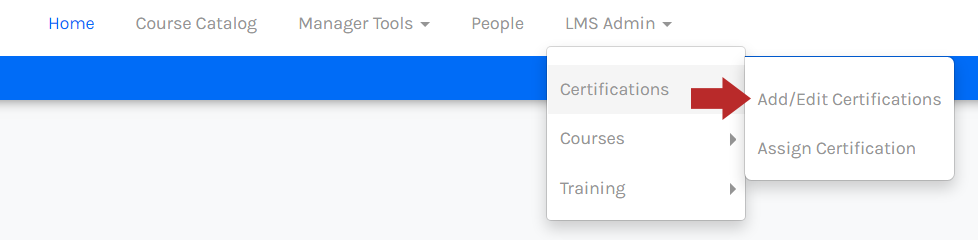
From Learning Management, click LMS Admin, click Certifications, then click Add/Edit Certifications.
Adding Certification
- Click Create New Certification.
- Enter the necessary information for the certification details:
- Certification Title (required) - This will show up in the drop-down for selection when assigning certifications.
- Description - This will appear in the email notification and from the Admin view.
- Set up the email reminder:
- Days Before - How many days prior to the individual's end date the reminder will be sent. The end date is a required field when the certification is being added by an employee, manager, or administrator
- Email Type - To whom the email notification will be sent.
- Carbon Copy Recipients - Additional users who should be carbon copied on the certification notice
- Click Add to have the email reminders added
- Click Save
Email reminders can be assigned to the same type multiple times, for example, an employee may have reminders set to go out to them 30, 14, 7, and 2 days prior to the end date.
Edit Certifications
- Click Edit to the left of a certification.
- Edit the necessary information for the certification details:
- Certification Title (required) - This will show up in the drop-down for selection when assigning certifications
- Description - This will appear in the email notification and from the Admin view.
- Set up the email reminder:
- Days Before - How many days prior to the end date a reminder will be sent. The end date is a required field when the certification is being added by an employee, manager, or administrator
- Email Type - To whom the email notification will be sent.
- Carbon Copy Recipients - Additional users who should be carbon copied on the certification notice
- Click Add to have the email reminders added and repeat as necessary.
- Click Save
Delete Certifications
Certifications can only be deleted when it is NOT assigned to anyone. For instructions on how to delete a certification from an employee, you can refer to the following article.
- Click Delete to the left of the certification.
- A confirmation modal will appear to confirm the deletion. Click OK to confirm.